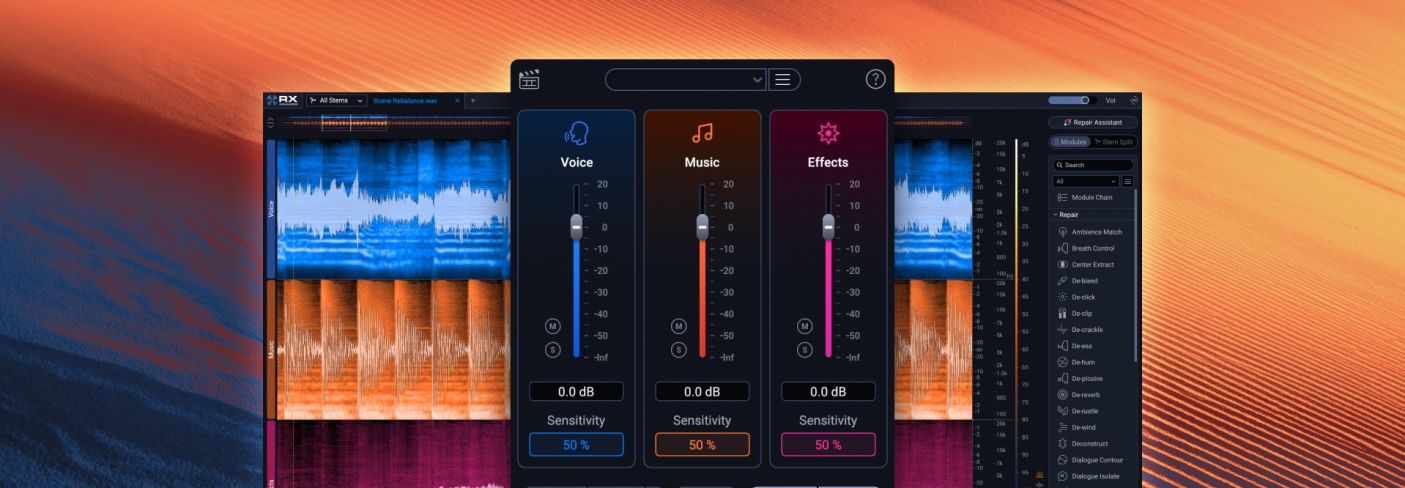
Fix it in post: How to reclaim the mix with RX 12 Scene Rebalance
Stop baked-in music from ruining your dialogue. Learn how to use Scene Rebalance in iZotope RX 12 to separate dialogue, music, and effects for a perfect mix.
"Fix it in post" is a phrase that can induce heart attacks – especially when you receive a stereo mix where the music is burying the dialogue. But with the release of iZotope RX 12, that nightmare scenario has a new solution.
RX 12 introduces Scene Rebalance, a module designed to undo the damage of baked-in audio from the set. Built on decades of award-winning research, this tool makes flawless sound achievable for everyone from world-class professionals to indie creators.
In this article, you’ll learn:
- How Scene Rebalance uses machine learning to separate complex mixes
- How to use Stems View for surgical editing
- Pro workflows for replacing licensed music and cleaning documentary footage
Has this ever happened to you?
A client calls, wants to work on a documentary of some kind, and asks if you can remove – or at least, tamp down – the background music that was recorded on camera.
This has happened to me on many, many occasions. And here’s another scenario I’m actually currently embroiled in:
An old fiction podcast I worked on was held on the shelves for years – so many years, it turns out, that all the licenses for the music have expired. Now the pod is back in production, and we have to replace every single song, be it featured or utilized in the deep-background piece of music.
Thank god I had access to the beta of RX 12’s Scene Rebalance. It made this process a dream, instead of a nightmare.
What is RX 12 Scene Rebalance?
RX Scene Rebalance intelligently separates complex film and TV scenes into three distinct buckets: dialogue, music, and effects.
Each category features sensitivity thresholds powered by state-of-the-art neural nets. Because the results null with the original stereo file, you can level the music up or down without introducing artifacts, ensuring a naturalistic result.
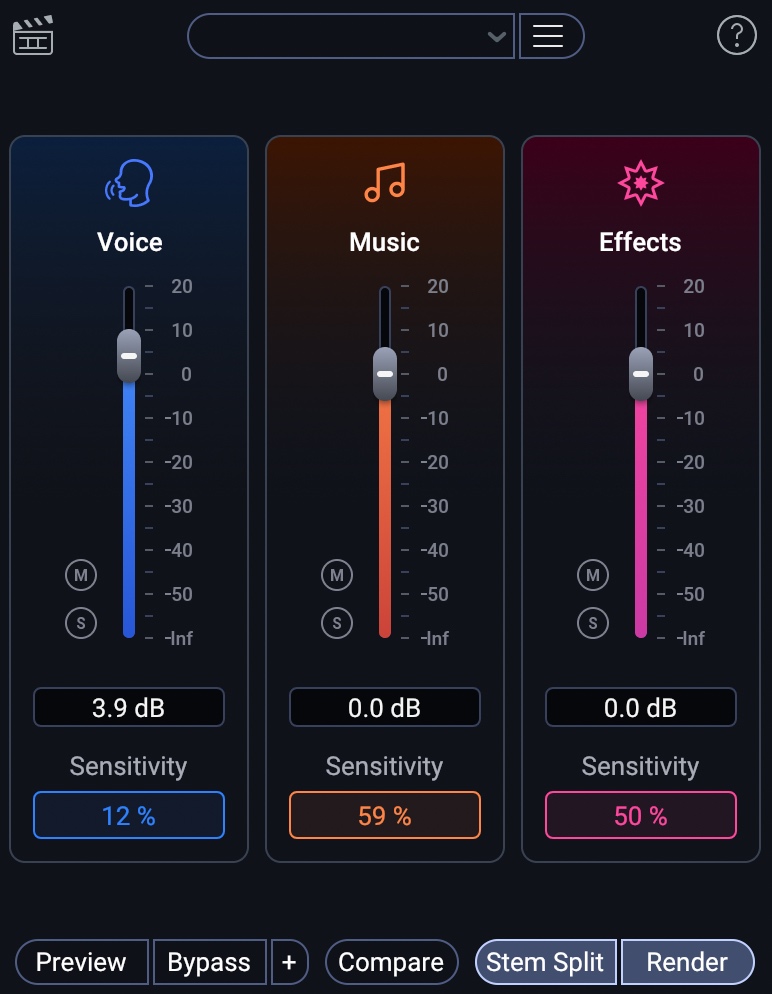
Scene Rebalance module in iZotope RX 12
Unlock surgical control with Stems View
RX 12 introduces Stems View, which visually splits your audio into a track-based workflow. This allows you to use the full RX toolkit – over 50 modules – on each individual stem.
iZotope RX has a whole new feature called Stem Split, available in a few different breakdowns. Here’s a quick video showing off the view:
This function lets us play around a lot, and I’ll demonstrate how with several real-world scenarios you might come across.
Real-world workflows with RX Scene Rebalance
1. Cleaning documentary footage
When production audio is cluttered with loud background music, Scene Rebalance allows you to independently adjust levels in seconds. For deeper cleaning, you can pull the tracks into Stems View and apply Dialogue Isolate to the voice stem to remove remaining noise and reverb.
For this example, I’m going to use some home-made tape, as none of my clients would probably want me to show off their production audio. We’ll pretend that I’m making a movie called Scenes from a Not-Quite Marriage in which I ask my Domestic Partner for her opinion on a loaf of bread I’d just baked.
I set up our conversation by making sure to blast a piece of music in the background – a piece of music that I have the clearance to use (Micah E. Wood’s “Altered Kindness.”)
Here’s the raw clip.
Here’s me working on it in real time:
And here’s the resulting audio:
That’s already pretty powerful, as you can tell, but I can actually go a lot farther in the Stem Split View.
Let’s test out this new tool. I’ll hit this button, circled in the screenshot.
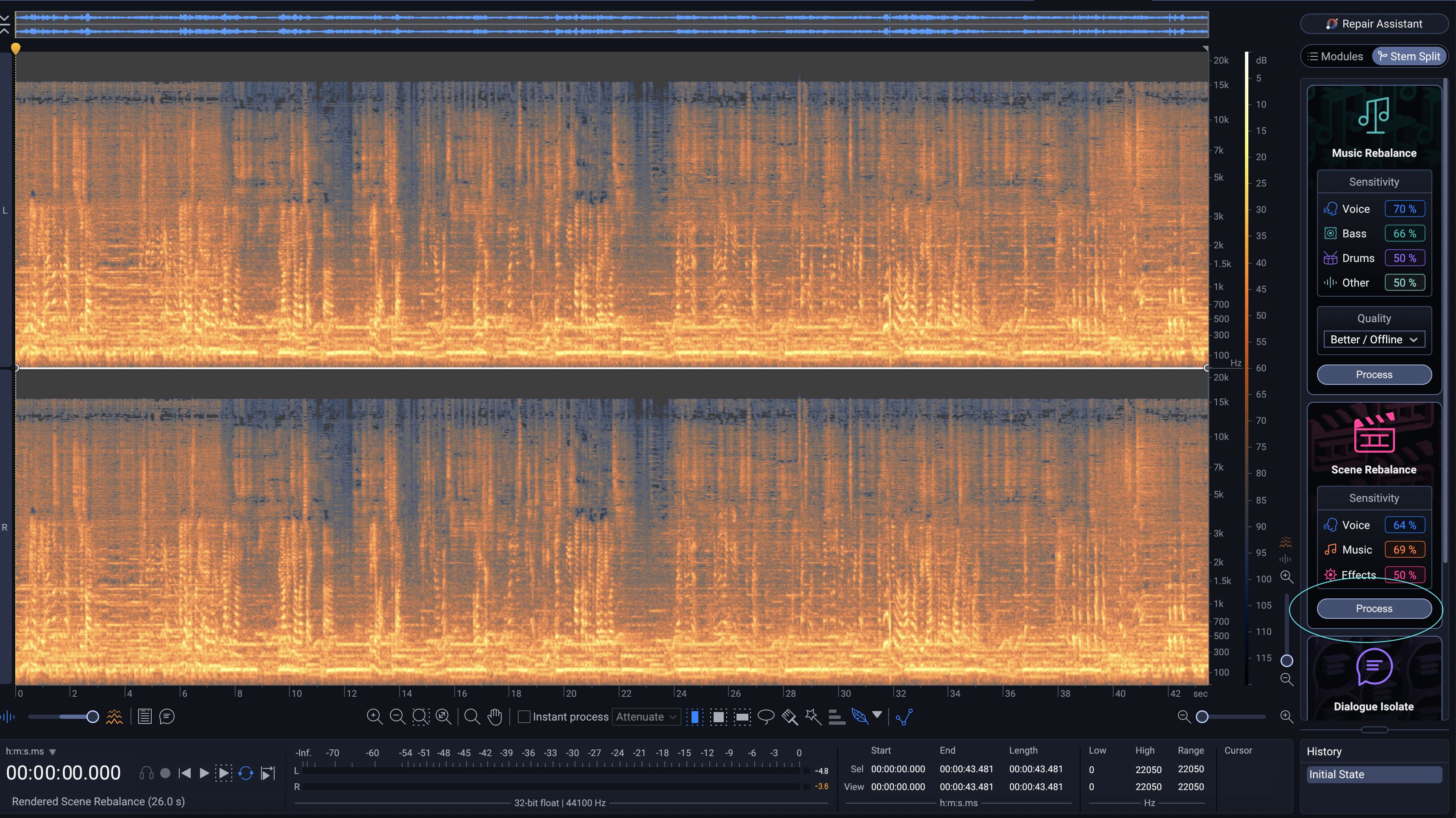
Process button in RX 12 Scene Rebalance
And this is what I get:
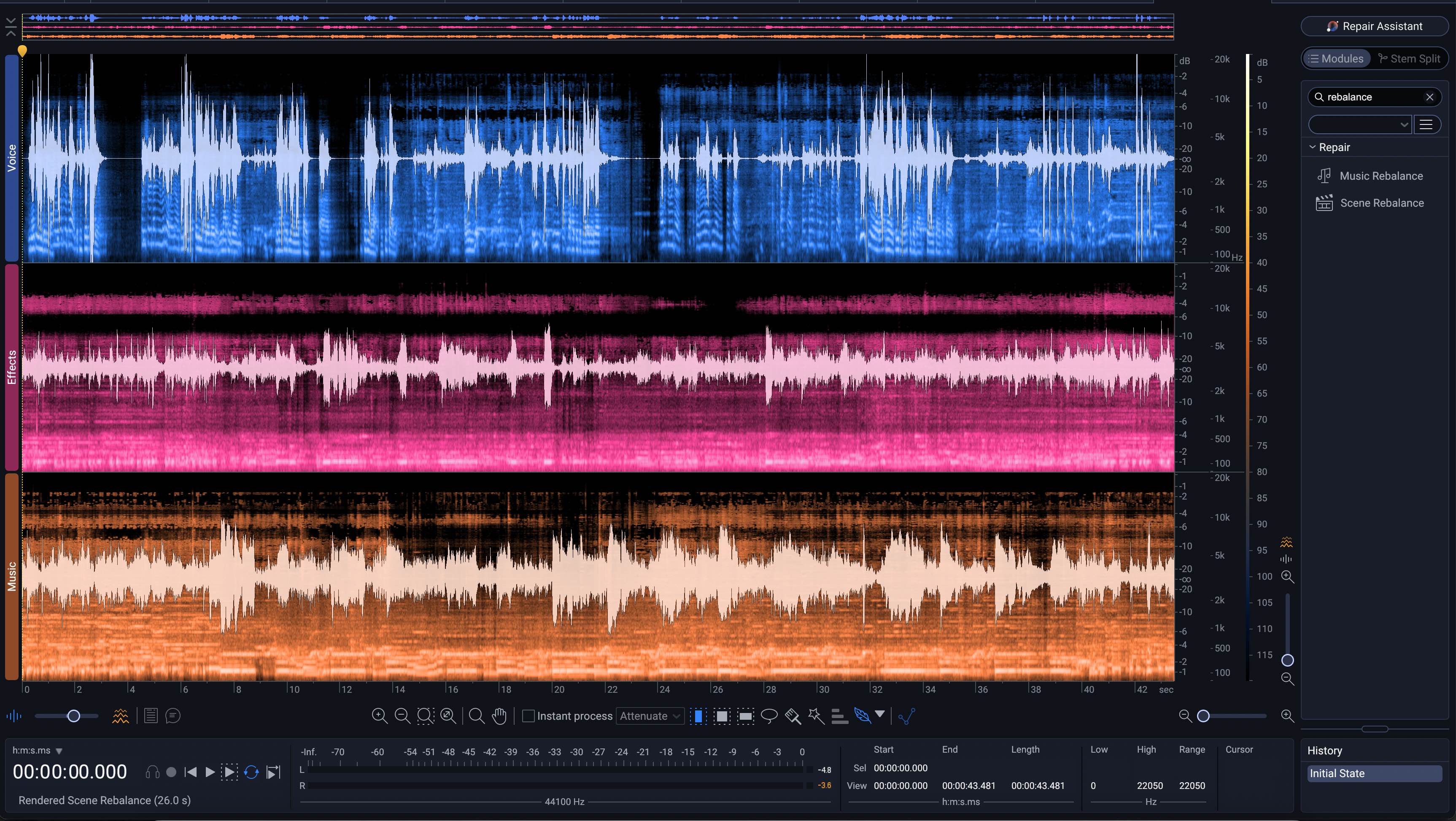
Stems View from RX 12 Scene Rebalance
I can now make specific changes to each stem – and not just gain adjustments. I can use literally any module on any stem in this view, including external plugins if I so choose. I can essentially do all the mixing I need to make room for things in here. I can even copy things from one stem and paste them into another.
In fact, I’ve done just that in the following audio:
I ran Dialogue Isolate on the voice stem, and ran music rebalance on the music stem to get out the vocals in the music.
2. Replacing music outright
If you need to swap a track for legal or creative reasons, use the Stems View to split the audio and export each element as its own file. You can then drop the clean dialogue and effects stems into your DAW (like Pro Tools or Logic Pro) and add your new music without anyone being the wiser.
In the next example, I’m going to take audio from another podcast called Genome Killer I did the sound for a couple years ago.
Let’s say we have this scene here, where two people need to refer to each other on the phone.
The producer let me know that I need to replace this music with something more upbeat.
I can separate the stems individually by pressing the button circled below:
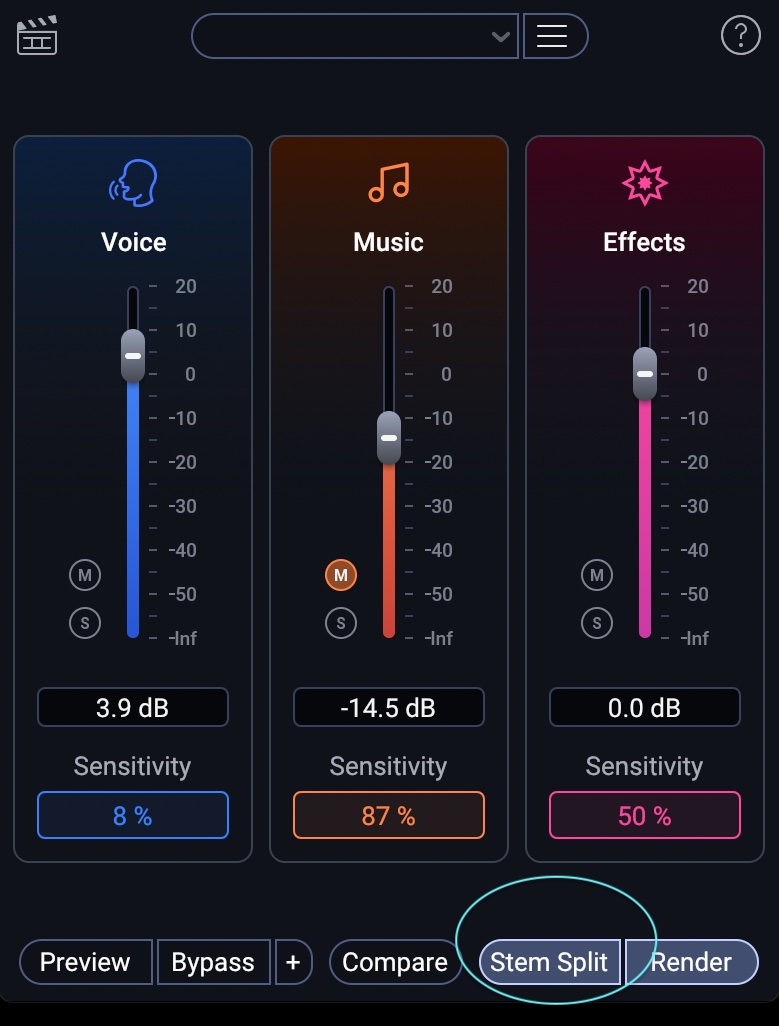
Stem Split button in RX 12 Scene Rebalance
And with my stems split, I can export to each stem to its own file, which I can then load up in a DAW, like so.
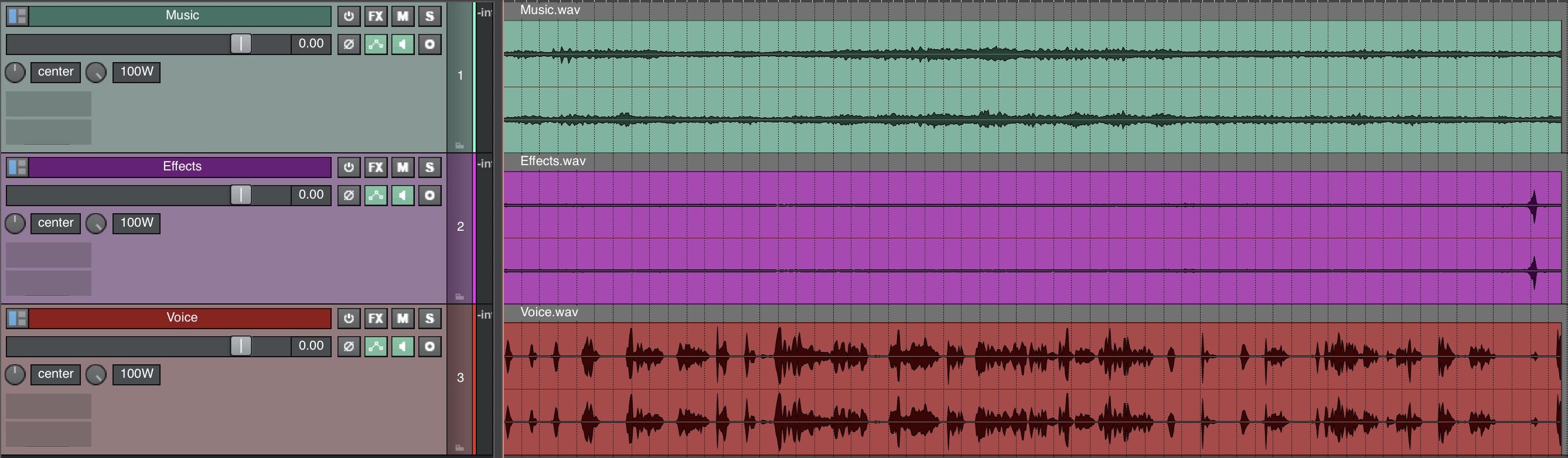
Stems created in RX 12 pulled into DAW
Now, I just delete the music stem, and add in whatever song I want.
In this case, I’ll add “Altered Kindness” once again, because doing so will be hilarious for this scene.
No one’s the wiser!
3. Advanced “lane swapping”
Machine learning is powerful, but sometimes a vocal from a background song might slip into the Dialogue lane. In Stems View, you can move audio regions from one lane to another, ensuring your voice stem contains only the spoken dialogue you need to keep.
Let’s look at this use case with a scene from an award-winning film I sound designed called Drink and Be Merry.
Here’s a snippet of some audio, which depicts two people talking in a bar while listening to a television ad. Let’s say I wanted to get the ad out and replace it with – you guessed it – “Altered Kindness.” Here’s how that would look:
If you want to skip the video, here’s the before and after:
Fix it in post
Scene Rebalance is a massive advancement for anyone fixing the unfixable under hard deadlines. Whether you're crafting an Oscar-winning sound mix or polishing an indie passion project, RX 12 provides the tools to protect every performance.