
Table of Contents
If you're an editor, podcaster, or content creator and you just need a voice to sound clean – without opening a session or learning a restoration suite – this one's for you.
Here's the short version: drop your audio into iZotope Photon, pick the model that matches where it was recorded, set the strength, and listen. Most of my everyday cleanup jobs take a couple of minutes, start to finish. Below, I'll show you how to clean up audio in the standalone app and inside a DAW, using some genuinely rough audio from my own projects.
What is iZotope Photon?
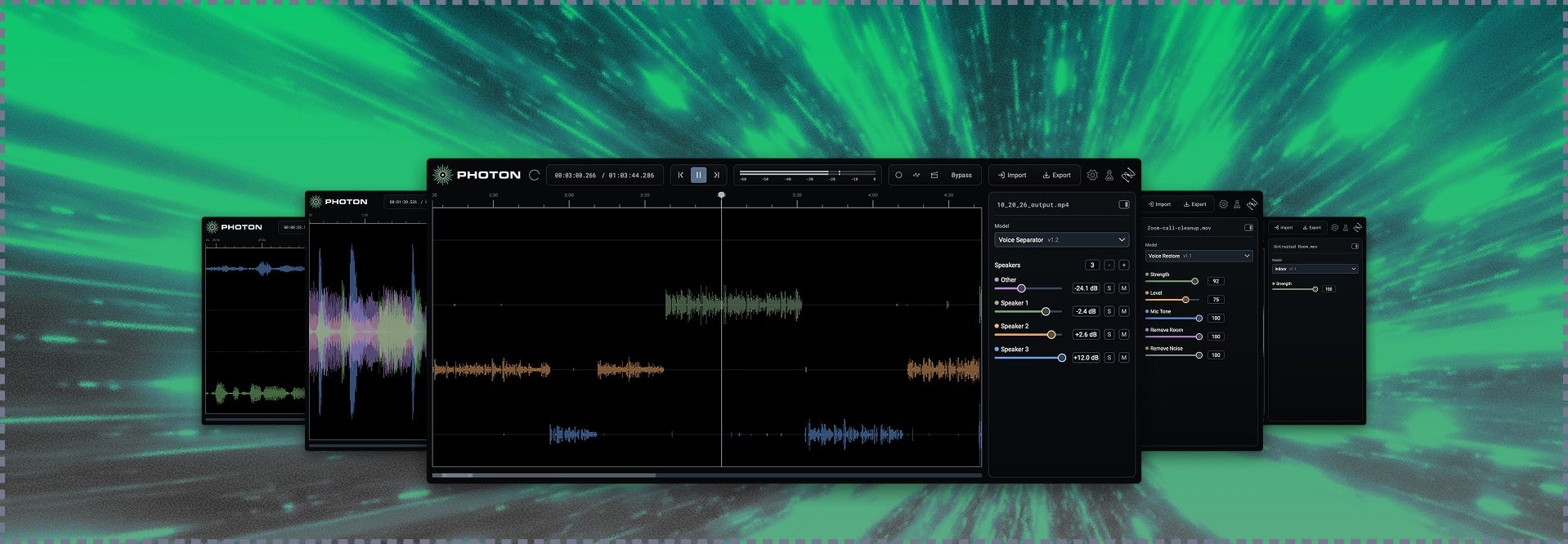
iZotope Photon is AI audio cleanup and stem separation software that runs locally on your computer, either as a standalone app or as an ARA plugin inside your DAW. It removes background noise and echo, evens out levels, improves vocal clarity, and can split a recording into separate voices or stems.
It's built for content creators, podcasters, video editors, and anyone else who gets handed a vocal and told to make it sound decent by end of day. Honestly, audio engineers can get a lot out of it too, especially on the jobs where speed matters more than surgery.
 iZotope Photon
The operation is simple. Photon has a dozen custom-trained models, each named for a situation – a noisy room, traffic, wind, a distant voice – rather than a technical parameter. You pick the situation, set the strength, and listen.
Real-world examples: a car voice note and two speakers on one mic
Photon is at its best on the messy, everyday recordings that show up in real projects. Here are two from my own life that can show you how to clean up audio.
How to remove background noise from a car recording
Here's a voice note I took of myself while driving, brainstorming ideas for a screenplay I'm contracted to write. I will now subject you to it:
Using the Voice Restore module, I can make a lot of this cruddiness disappear.
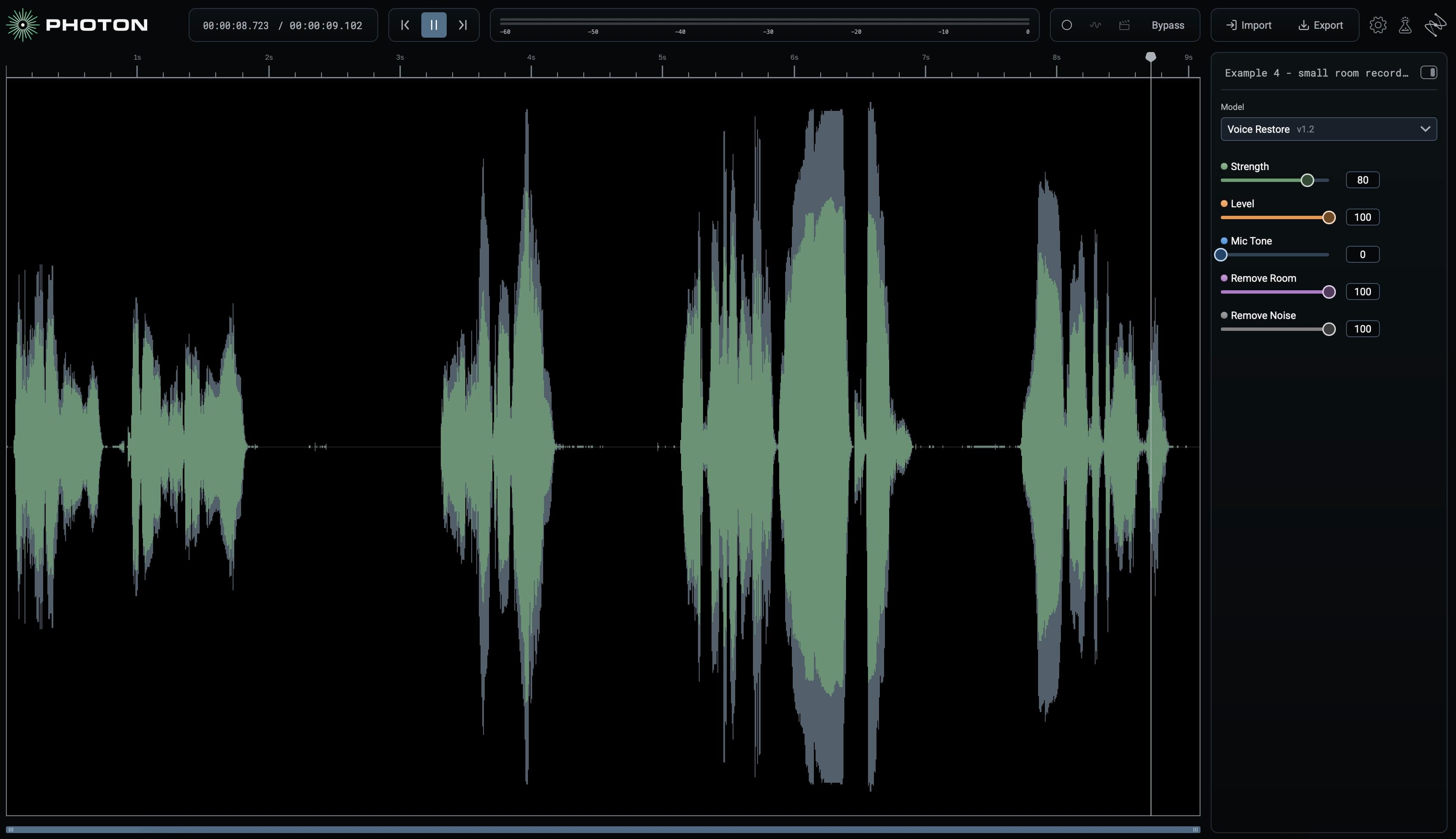
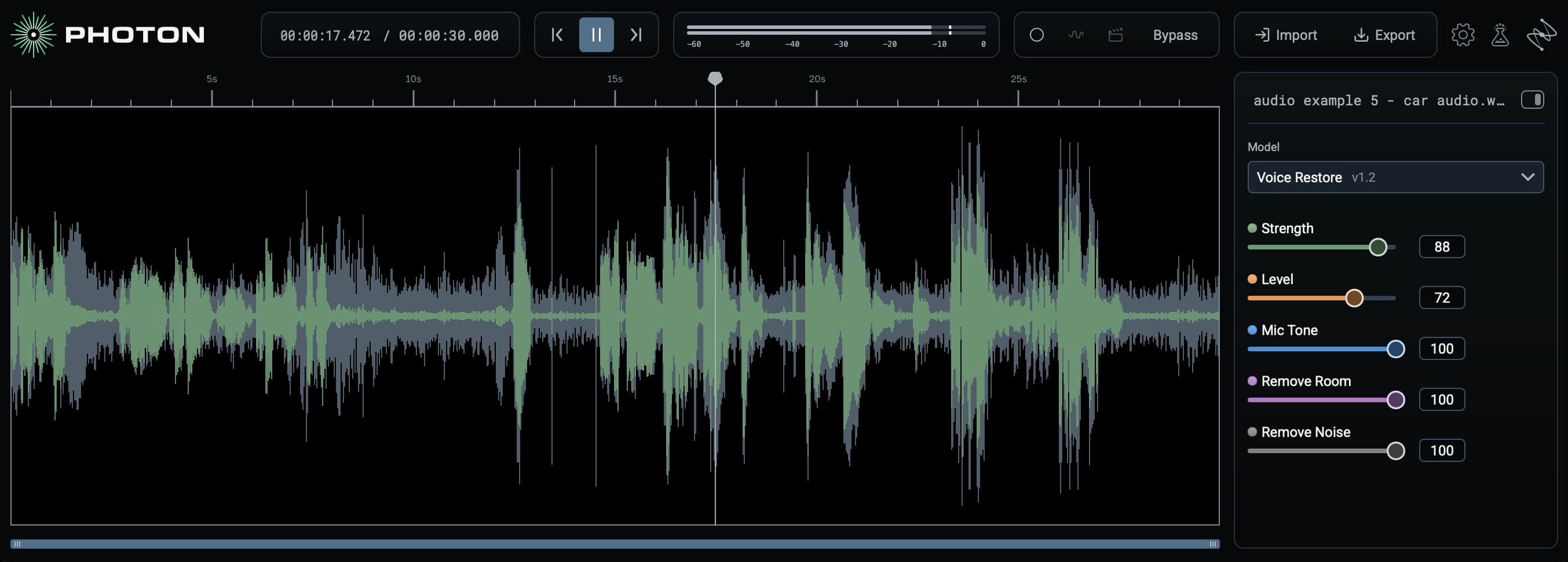 Voice Restore pulling my voice out of the road rumble
For kicks, I ran the processed audio through Voice Restore a second time. Notice the noise drops further, but the voice doesn't lose quality.
If you’d like to check out Voice Restore in further detail, take a look at the video below.
How to separate two speakers recorded on one mic
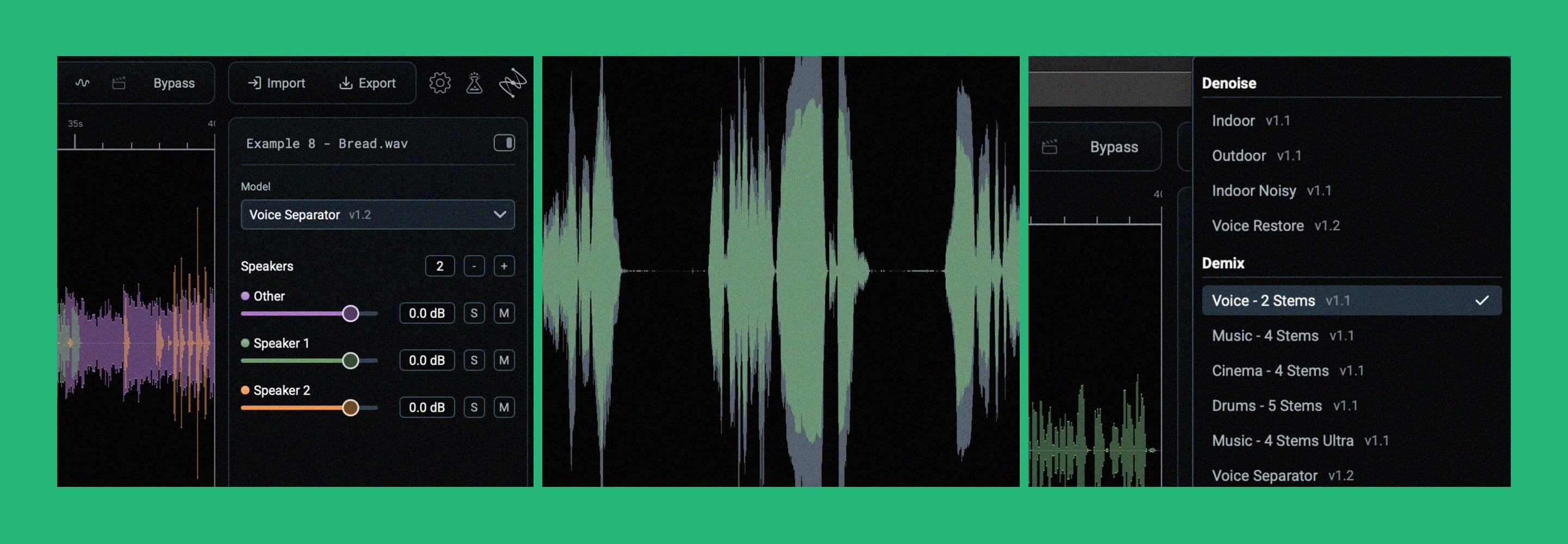
To split a conversation captured on one mic, use the Voice Separator model. It can pull up to six voices into their own stems, plus room tone and background.
Here, for instance, is my wife, razzing me about the bread I baked her one day after she asked me to take care of feeding our family.
I separated the two of us with Voice Separator, without tweaking a thing.
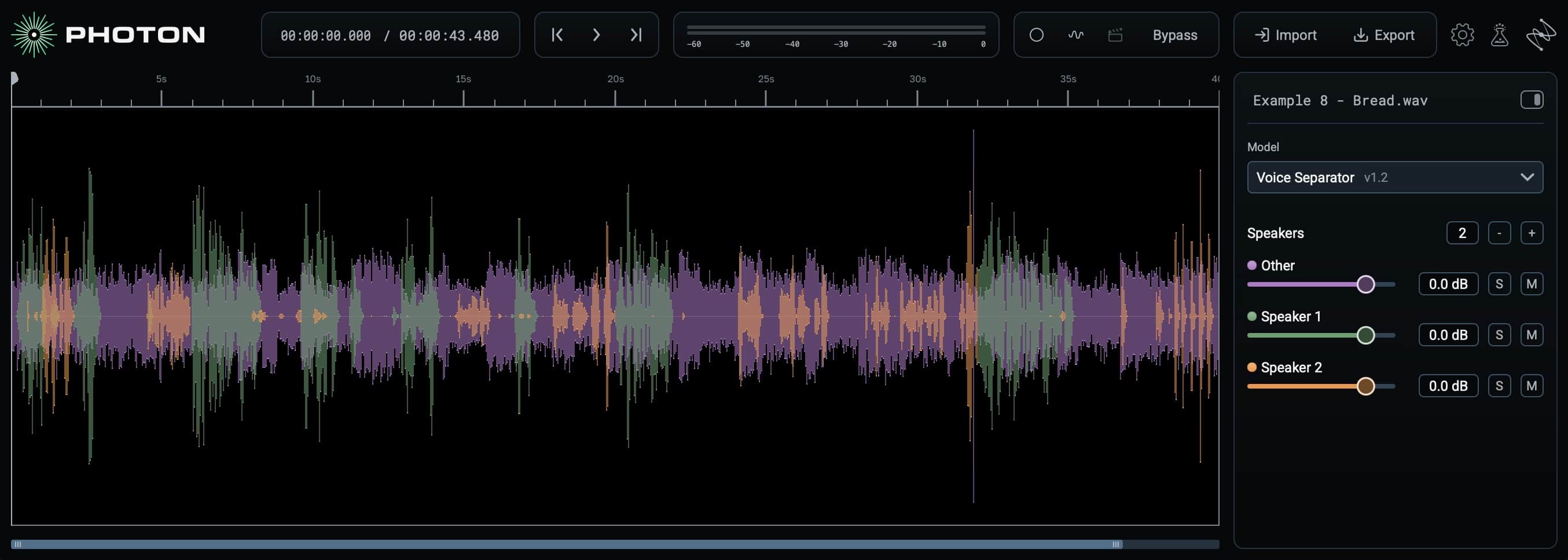 iZotope Photon Voice Separator gives each of us our own stem
Here’s what we get by way of results.
Take a look at more ways to use Voice Separator in the video below.
How to quickly clean up audio in Photon's standalone app
To quickly clean up audio in the standalone app, open Photon, drag in your file, choose a model from the list on the right-hand side, and play it back. Processing starts wherever you put the playhead, so you hear the result right away.
- Open Photon.
- Drag your audio (or video) file into the window.
- Pick the model that matches your problem from the right-hand side.
- Set the strength, listen, and adjust until it sounds right.
- Export.
When you first open the app, you'll see this:
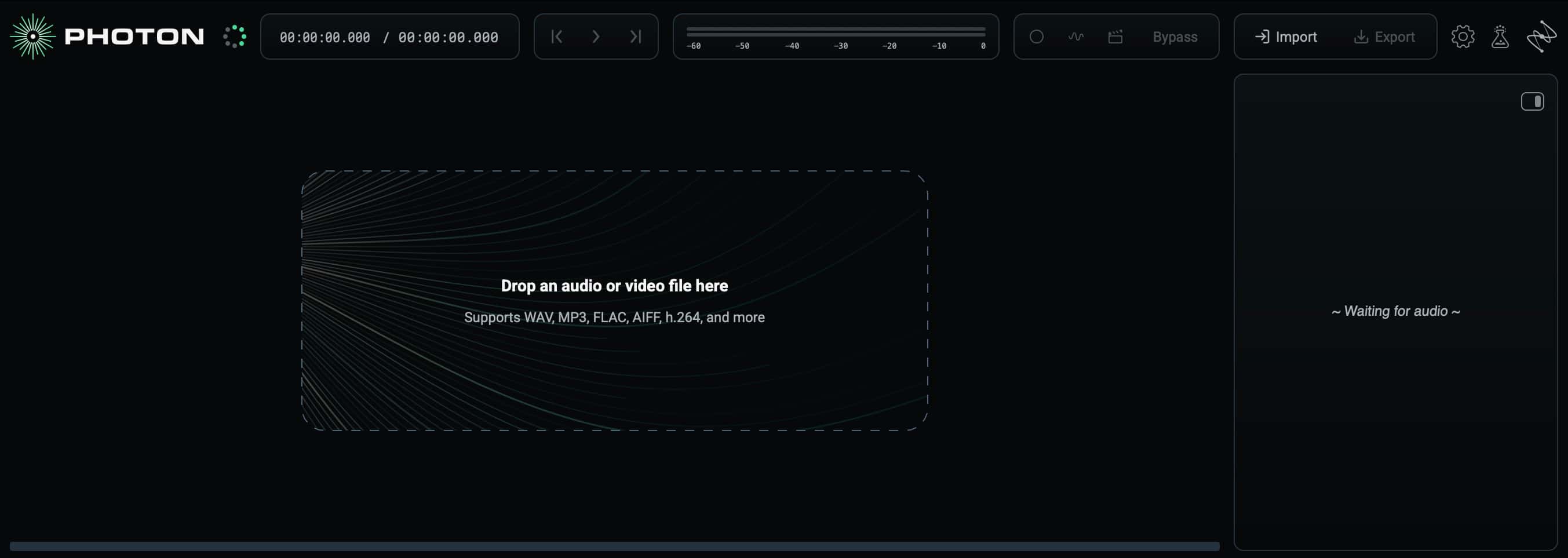 Photon's start screen. Drag in any audio or video file and you're off
Drag your audio into Photon, and then pick one of the models on the right-hand side of the app. The model you want depends on the issue you're facing.
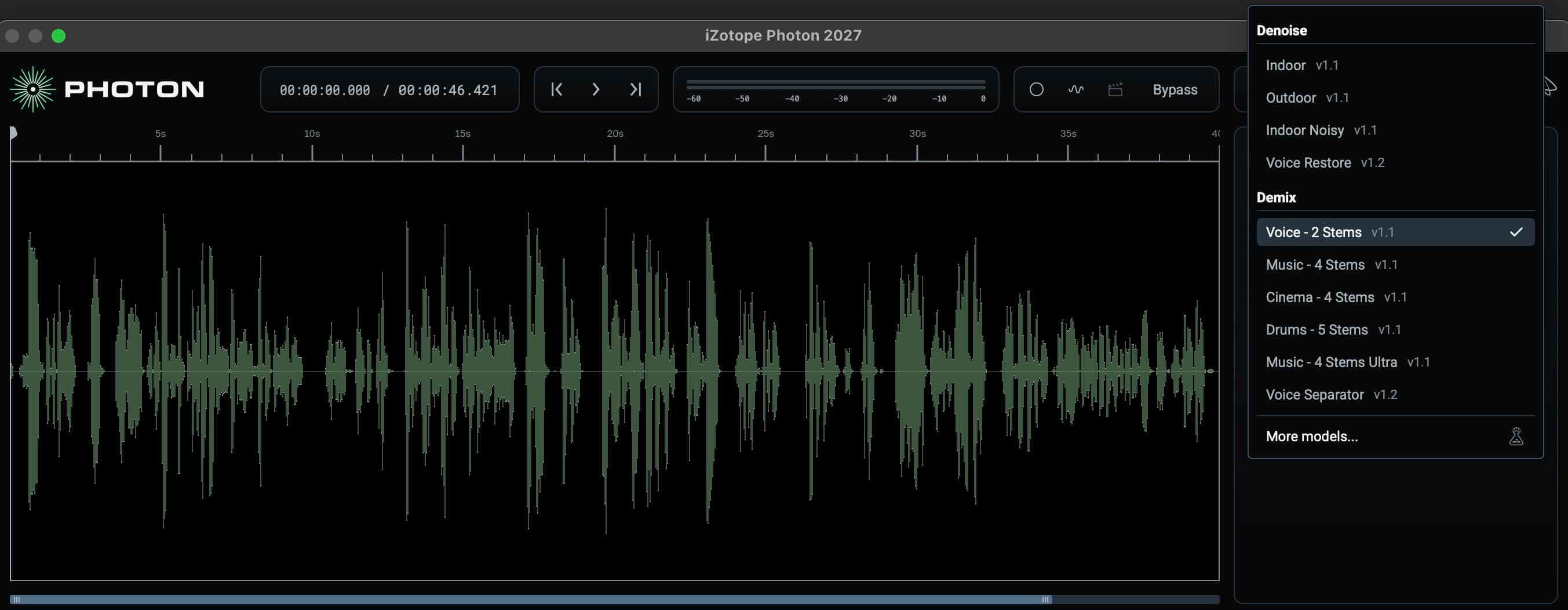 Each Photon model is named for where you recorded, so there's nothing to diagnose before you start
For instance, I deal with a lot of audio recorded over laptop mics and captured on platforms like Riverside. Here's one such example:
For this one, the Indoor model works just fine. It’s also the fastest way to clean up audio in Photon. The Indoor and Outdoor models remove distractions in one pass – noise and echo indoors, wind and traffic outdoors – while automatically leveling your audio and enhancing your voice.
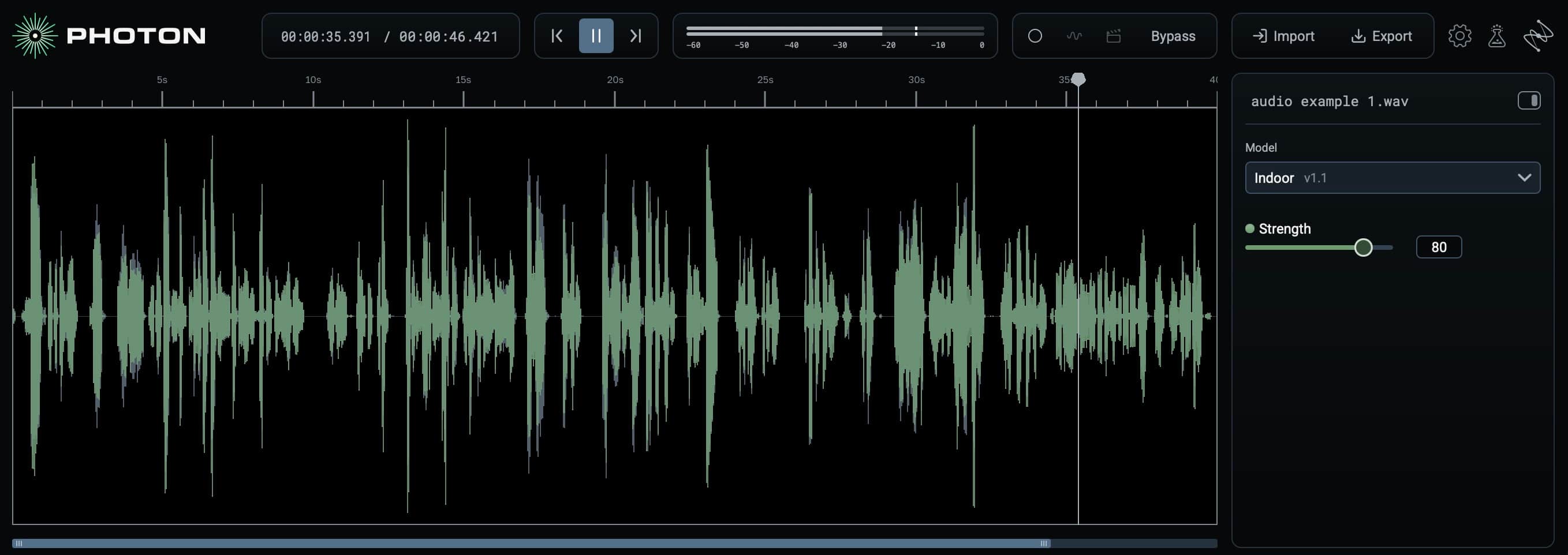 The Indoor model clearing up a laptop-mic interview recorded on Riverside
Indoor is light enough to process audio in very little time, and it's also robust enough to improve band-limited material like phone calls, which I also get in my daily workflow:
How to use Photon in an ARA2-compatible DAW
To clean up audio without leaving your session, add the Photon ARA plugin to the track, choose a model, and keep editing. ARA hands Photon the whole clip rather than a real-time buffer, so it works with the full context of the file. It runs in ARA2 hosts including Pro Tools, REAPER, Cubase, Sequoia, and Samplitude.
Here's what that looks like in REAPER:
Which Photon model should you use?
For most cleanup jobs, Voice Restore is your best option. It handles noise, echo, wind, and traffic, evens out levels, and enhances your voice all in one model, and you get full control over every setting. When you need a fast fix, pick the model that matches where the audio was recorded or what’s wrong with it. These cleanup models also remove noise and echo while evening out levels and improving vocal clarity.
| If your audio has… | Try this model | Good for |
|---|---|---|
| Room echo and noise from an untreated space | Voice Restore or Indoor | Home offices, laptop mics, remote interviews, phone calls |
| Loud, busy interior noise | Voice Restore or Indoor Noisy | Event halls, factory floors, crowded rooms |
| General background noise outside | Voice Restore or Outdoor | Street interviews, location shoots |
| Traffic and city noise | Voice Restore or Outdoor Traffic | Anywhere engines are running |
| Wind hitting the mic | Voice Restore or Outdoor Wind | Rooftops, coastlines, exposed locations |
| A distant, muffled, or uneven voice | Voice Restore | Far-away podcast guests, livestream mics, car recordings |
| Several people talking on one mic | Voice Separator | Up to six speakers, plus room tone and background |
| Dialogue tangled up with music or effects | Cinema 4 Stems | Pulling a soundbite out from under a soundtrack |
| A voice over a music bed | Voice 2 Stems or Music 4 Stems Ultra | Cutting background music out of your content |
You can also stack models. It's normal to run one, listen, and reach for a second if the recording needs it – you'll see me do exactly that below. Photon also has music and drum separation models, but that's a story for another article.
Where Photon fits alongside iZotope RX
Use Photon when speed is the priority and you want the whole recording sorted fast. Reach for iZotope RX when a job calls for precision – finding one specific click or rustle and fixing it without touching anything around it.
Photon is built to take a sub-par vocal and make it sound like it wasn’t recorded inside a dishwasher. If you're editing your own podcast, cutting a video for the reels, or rescuing a rough interview before a deadline, a pass or two through Photon can be all you need.
On a high-stakes dialogue edit where every little noise matters – say, a feature film where you're getting paid to make things sound cinematic – you'll want to get into the weeds. That's RX territory.
Of course, you can use both. Start with Photon to get the broad strokes in order, then open RX for anything that still deserves individual attention. Think of it as the difference between tidying a room and booking a professional deep clean.
Can AI tools like these run locally on your computer?
Yes. AI audio cleanup doesn't have to mean uploading your files to someone else's server. Some tools process in the cloud, while others, including Photon, run entirely on your own machine's GPU.
That distinction matters if you're working with confidential interviews, unreleased music, client dialogue, or anything you'd rather not hand to a third-party service. If you're creating content under contract – if you've signed an NDA about the project – you shouldn't let just any cloud-based AI tool handle your embargoed audio.
Here’s the process for something online based:
- Export the troublesome audio edit out of your timeline so you don’t feed the cloud a virtual ton of gigabytes
- Upload the file
- Wait as they process your audio
- Judge whether or not AI did a good job or merely thought it did
- Download the results, often sent back to you in a different sample rate and truncated bit-depth from the original
- Resample audio if needed
- Import audio into your timeline
- Line it up with the original clip, or force link to the new clip
- Go about your day
Here’s the process for Photon in a DAW like Reaper or Pro Tools:
- Instantiate Photon’s ARA2 plug-in on a troublesome audio track
- Choose the model and settings you want
- Move on with your life
Hey, if you want to become one with Skynet – if you want to ask Agent Smith to take you back into the matrix so you can eat filet mignon while your very existence powers a bunch of technology you barely understand – go for it! I’m not here to judge!
Your client, however, might – so check the requirements of the particular project.
For jobs where privacy is a supreme concern, Photon is your top choice.
Start cleaning up your audio fast
No one got into this business to remove mouth clicks by hand. That’s why some of the more obsessive of us stay in the business, but it ain’t the initial appeal. Chances are you don’t want to spend your life painting out noise, especially if you’re a content creator. You just want to know how to clean up audio by stripping background noise, taming a bit of room echo, and getting a voice sounding clear enough to do its job.
Photon is a useful tool in the box for just that purpose – particularly for creators who don't want to learn an entire suite of restoration tools just to clean up a voiceover or salvage an interview. And when a recording needs more attention, you can always move into RX for the finer details.
FAQs
How do I remove background noise from audio?
Drop the file into Photon. If you want the most powerful noise removal and full control over the sound, use Voice Restore. If you need clarity, enhancement, and noise and echo removal fast, choose the model that matches where it was recorded – Indoor, Indoor Noisy, Outdoor, Outdoor Traffic, or Outdoor Wind. Then set the strength, listen, and export. For a distant or muffled voice, try Voice Restore.
How do I remove background noise from a video?
You can drag the video file straight into Photon, including .mp4, .mov, and .mkv files. Photon reads the audio track, and you can export the cleaned-up audio back into a copy of the video with the original picture intact.
How do I remove echo from audio?
For the most control over the sound, use Voice Restore. For a fast fix, use the Indoor model for echo from an untreated room, or Indoor Noisy for large, busy spaces. Both reduce echo and background noise at the same time.
Can I separate two people recorded on one mic?
Yes. The Voice Separator model splits up to six speakers into individual stems, plus room tone and background, so you can process or level each voice on its own.
Does Photon upload my audio to the cloud?
No. Photon processes everything locally on your computer's GPU, so your files never leave your machine.
What is ARA, and why does it matter?
ARA (Audio Random Access) lets a plugin see an entire clip on your DAW timeline instead of processing it bit by bit in real time. For Photon, that means the full engine works on the full context of the file, right inside your session.