
Table of Contents
Here’s a common scenario in audio post-production: someone sends you a two-hour file. There’s gold in there – the perfect interview clips for a podcast or a completed audiobook – but it’s buried under flubs and silence.
Often, this audio is self-recorded over Zoom or a laptop microphone, meaning it’s packed with room reflections and noisy air conditioners. In the past, cleaning this up was a tedious manual process.
Now, with iZotope RX 12, you can marshal messy audio into a polished product in moments.
Whether you’re cutting your own content or operating in a professional pipeline, RX 12 has 50+ tools to help you work faster without sacrificing precision. Let’s look at how to turn around your audio cleanup in 30 minutes or less.
Audio cleanup steps
1. Remove unnecessary audio with Trim Silence
The new Trim Silence module in RX 12 automatically detects and deletes regions of silence in long files, eliminating the need for tedious manual editing.
- Threshold: Sets the level below which the module considers audio to be silent. This helps tune out background noise or an interviewer off-mic.
- Silence: Controls the desired length of the remaining silences.
- Post Roll: Adjusts your “handle,” or the amount of time to wait after noise falls below the threshold.
- Crossfade: Adjusts the transition length between the silence and the next section of audio.
By using Trim Silence, you can instantly chop 15 minutes of useless gaps out of an hour-long file with one click.
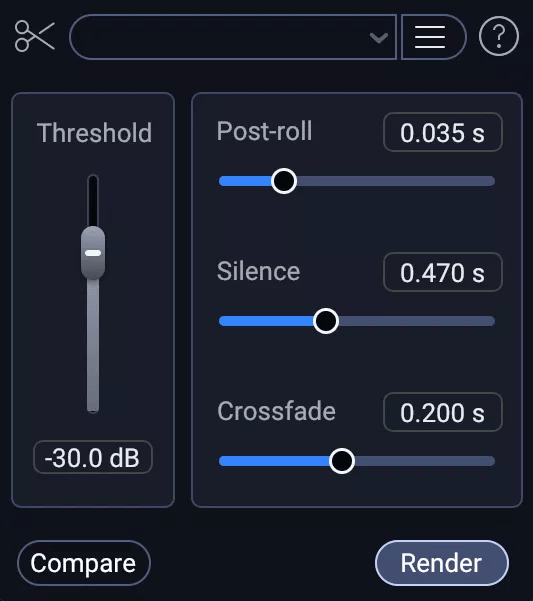
Trim Silence in RX 12
Here's Trim Silence in action:
We can use Trim Silence to greatly reduce the duration of our audio. In this video, watch as I trim 15 minutes of useless noise and silence out of an hour long file in a click of a button.
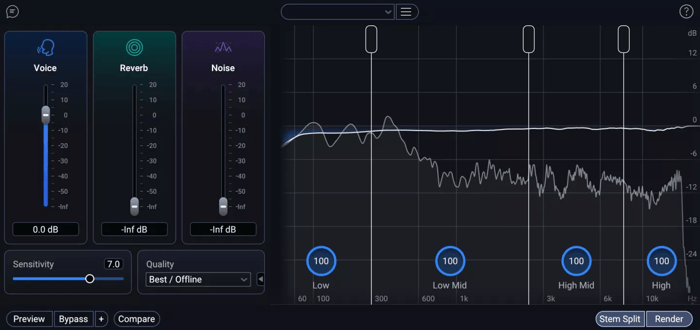
Dialogue Isolate in RX 12 Advanced
To my ears, that is a clear improvement over the previous version; RX 12 is even able to isolate the breaths in the middle of the noise, which RX 11 did not do.
This is a good place to mention that RX has a whole new way of visualizing your audio, thanks to its Stems View – which you can use with Dialogue Isolate.
3. Refine in Stems View
For even more control, use the new Stems View. This allows you to visually split mixed audio into distinct dialogue, noise, and reflections tracks.
Once separated, you can apply the full RX toolkit to each individual stem:
- Run the reflections stem down using the Gain module.
- Use De-clip on the vocal stem to rescue distorted peaks.
- Apply De-hum to remove any lingering electrical interference.
When you’re finished, Stems View seamlessly brings everything back together for export.
I’ll demonstrate using our phone audio:
Whether I choose to do this the fast way (Dialogue Isolate) or with more control (Dialogue Isolate in Stems View), I can quickly turn raw audio into something usable – even when it comes to zoom recordings taken with a computer microphone.
4. Create a custom Module Chain
To work even faster on your next project, set up a custom Module Chain. This allows you to fire off your favorite sequences – like Trim Silence followed by Dialogue Isolate – with a single click.
Simply use the new module search to find "Module Chain," load your preferred tools, and save them as a preset to save hours of manual work in future sessions.
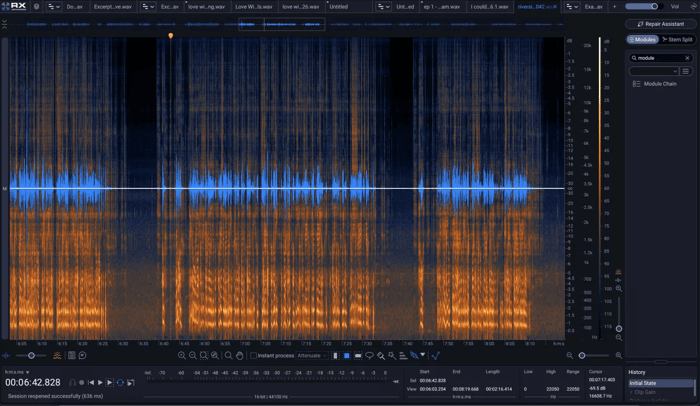
Module search in RX 12
To do this, click on that sole result – “module chain” – and this will open:
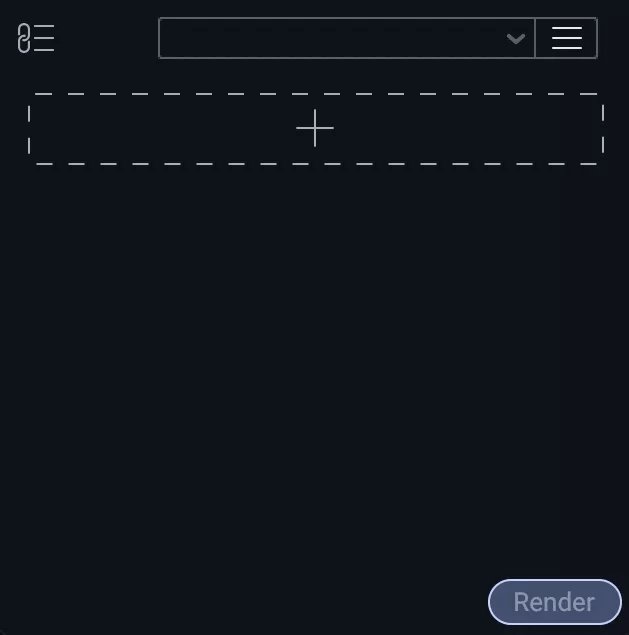
Now you can load Trim Silence with your preferred settings in slot 1, and follow that up with Dialogue Isolate in slot 2. Store it as a preset, and you’re good.
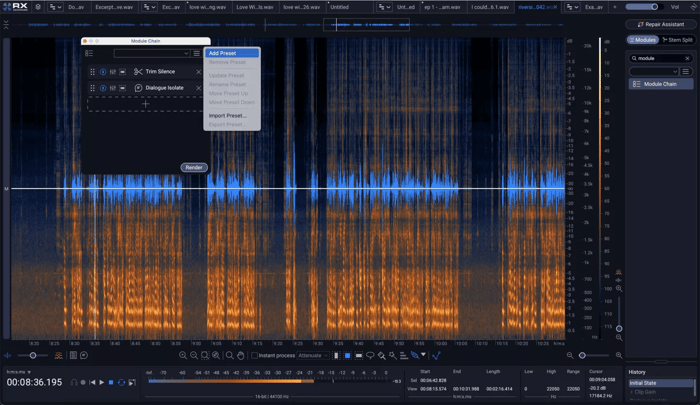
Adding presets in the module chain in RX 12
Now comes the part where things diverge, depending on your purposes.
5. Level and release your podcast if no further editing is required
If your project doesn't require deep creative editing, you can finish the job directly in RX using the Leveler. This module non-destructively smoothes out dialogue levels to ensure your dynamics stay controlled.
Then, use Loudness Control to match your audio to global broadcast or streaming standards, ensuring your podcast sounds professional on every platform.
Observe Leveler in action below.
I set the target for -16, which gives us a healthy level -15.9 LUFS integrated for the whole file, ensuring it doesn’t peak above 0.
If you want, you can also limit the audio to -1 dBTP with your limiter of choice using RX’s external plug-in loader. That’s up to you.
Finally, you export as a wav or mp3, and you’re done!
The 30-minute audio cleanup checklist
- Run Trim Silence: Automatically delete gaps and lulls.
- Run Dialogue Isolate: Separate speech from noise and reverb.
- Refine in Stems View: Individually process vocals, noise, and reflections.
- Apply Module Chains: Save your settings as a preset for next time.
- Level and Export: Use the Leveler for consistent volume and export your final file.
Get started RXing
From raw, noisy files to a polished, professional output in under 30 minutes, RX 12 turns what used to be a grueling editing chore into a streamlined, intelligent workflow. By combining the automated power of Trim Silence with the surgical precision of the rebuilt Dialogue Isolate and the new Stems View, you can rescue even the most challenging recordings without losing the natural character of the performance.
Ready to transform your audio? Get RX 12 today and experience the industry standard in repair and restoration for yourself.