
Table of Contents
- Perfect is the enemy of good!
- Vocal pre-mix checklist
- 1. You can hear the backing track in the vocal mic
- 2. Peaks are flat-topped and loud notes sound crunchy
- 3. There's a wash of noise under everything
- 4. A steady buzz sits under the take
- 5. Too much room reverb
- 6. Mouth clicks and low-end plosives
- 7. Distracting breath sounds
- 8. Harsh sibilance
- 9. One-off noises you can see but can't gate
- 10. The comp is great, but the tone jumps between lines
- Get started, but remember: it's all in moderation
- FAQs
Every mixer knows the feeling – you pull up a vocal and you swear it sounded great in tracking; but you slap a compressor on it, and suddenly there's a hi-hat living in the singer's mic, a fridge humming in the distance, and a bunch of consonants that sound like someone fired them out of a paintball gun. What gives?
You, my friend, have a vocal that isn’t ready for mixing. And here’s why: compression, saturation, and reverb amplify whatever is going on that vocal mic capture of yours.
So what’s the answer? A healthy – underlined healthy – dose of RX 12, used in various ways, to clean up the problem at hand. That’s what this article, a companion piece to Geoff Manchester’s wonderful walkthrough, will deal with: a vocal pre-mix checklist that you should apply to your recording.
Follow along with a free trial of iZotope RX, the industry standard for audio repair and restoration.
A quick note on workflow: Geoff works in the RX 12 Advanced standalone app because the spectrogram view makes these problems easy to see. But you can do all of this with RX plugins in your DAW, in ARA mode, via RX Connect, or with Repair Assistant diagnosing things automatically. Use whatever suits you.
Quick answer: is my vocal ready for mixing?
A vocal is ready for mixing when it has no audible bleed, clipping, broadband noise, hum, unwanted room reverb, mouth clicks, plosives, distracting breaths, harsh sibilance, one-off noises, or tone jumps between comped lines. Solo the vocal, listen at mix level with a compressor on it, and check the spectrogram. Fix only what you can hear in context: pre-mix vocal preparation is about removing distractions, not chasing perfection.
Before we begin, here's the vocal pre-mix checklist at a glance:
| # | Sign | How to spot it | RX 12 fix | Don't overdo it |
|---|---|---|---|---|
| 1 | Backing track in the vocal mic | Ghost of drums or guide track when soloed | De-bleed | Keep bleed in acoustic, live-feel mixes |
| 2 | Flat-topped, crunchy peaks | Squared-off waveform, fizzy distortion | De-clip | Heavy settings sound as bad as clipping |
| 3 | Wash of noise under everything | Hiss or fan noise between phrases | Voice De-noise | Dense, loud mixes often mask it anyway |
| 4 | Steady buzz | Horizontal lines at 50/60 Hz and harmonics | De-hum | Adjust sensitivity and band count to the source |
| 5 | Too much room reverb | Audible room tail after words | Dialogue Isolate (De-reverb) | Remove most of the reverb, not all |
| 6 | Mouth clicks and plosives | Ticks between phrases; low thumps on P and B | Mouth De-click, De-plosive, Spectral Replace | A few clicks can add intimacy |
| 7 | Distracting breaths | Loud inhales that pump with compression | Breath Control | Attenuate breaths; don't delete them |
| 8 | Harsh sibilance | S and T sounds that sting | De-ess (spectral mode) | Expect another de-ess pass after compression |
| 9 | One-off noises | Visible blobs: creaks, buzzes, page turns | Spectral Repair | Attenuate or Replace usually beat Pattern |
| 10 | Tone jumps between comped lines | Timbre changes between takes or days | EQ Match | Back up the original comp first |
Perfect is the enemy of good!
Aim for a clean vocal, not a flawless one. Over-processed vocals sound artificial, and under-processed ones sound amateur; the goal is the balance between the two.
In the age of AI-generated everything, perfection tends to read as, well, AI-generated, and in my experience listeners who care about music can hear it. At the same time, the ear scans for hints of unprofessionalism: recordings that sound bedroomy, sudden blasts of noise that shouldn't be there. You've got to get rid of those too.
So what do you do? You strike a balance. You don't go hard: you get even. (And no, that sentence wasn't generated by AI. I like my job, actually.)
Now, on to the checklist.
Vocal pre-mix checklist
1. You can hear the backing track in the vocal mic
The fix: De-bleed
If you solo the vocal and hear drums, guitar, or the guide track underneath it, you have bleed. Bleed usually comes from a singer's headphones being too loud, and it matters because the guide track then ends up in your mix twice. RX 12's De-bleed module removes it.
The improved De-bleed in RX 12 no longer requires you to source the reference track like the previous version did. You isolate the vocal (or whichever source you're working with) with a simple click-and-go workflow, and the bleed gets pulled out.
Here's De-bleed getting a vocal from a live recording into shape.
2. Peaks are flat-topped and loud notes sound crunchy
The fix: De-clip
If the loudest notes look squared off in the waveform and sound fizzy or brittle, the vocal is clipped. Clipping happens when the signal exceeds the converter's maximum level during recording, and compression only makes it worse. Clipping is one of the most common vocal recording problems. RX 12's De-clip rebuilds the missing peaks.
Have a look at this waveform.
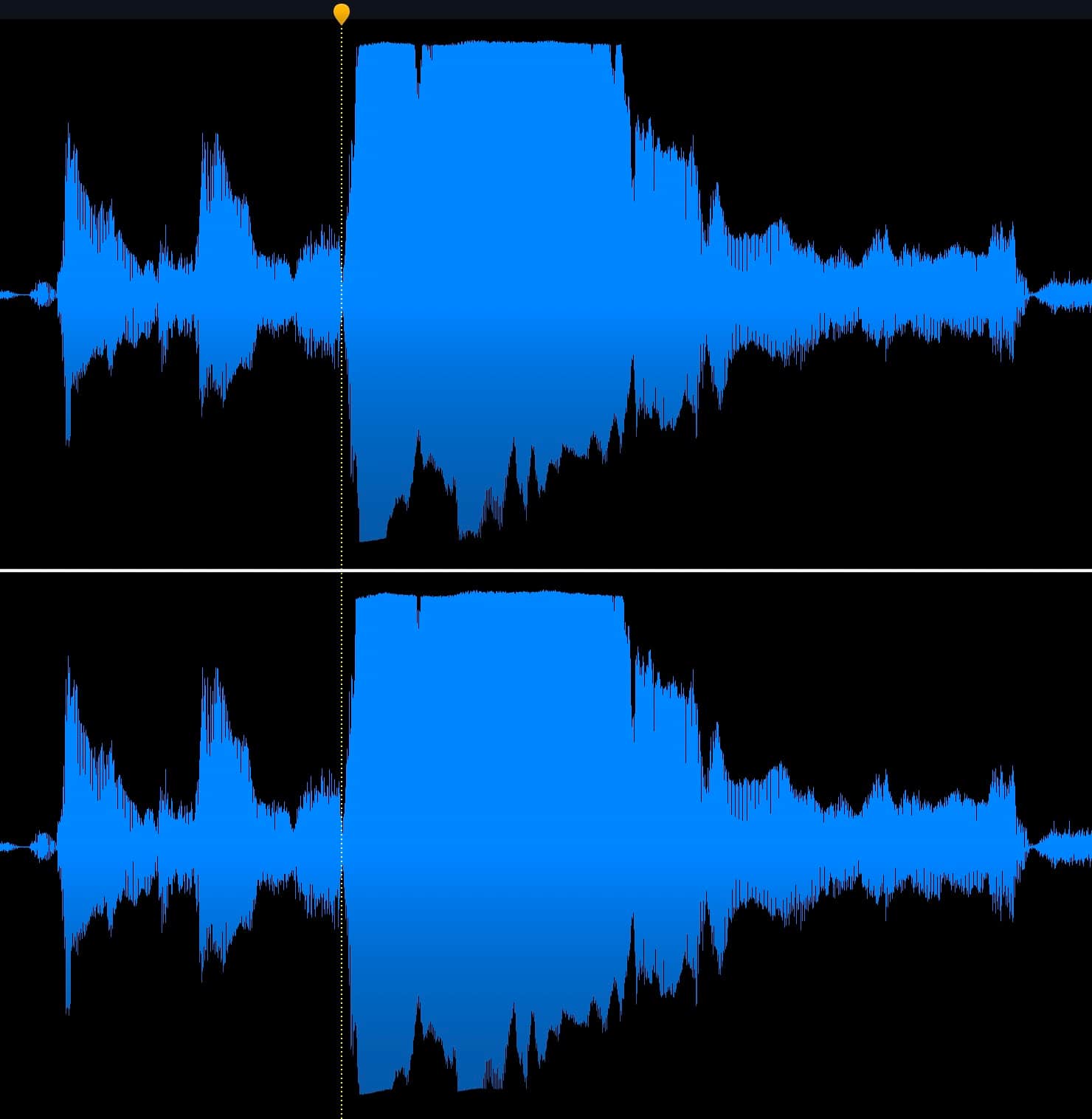 Vocal waveform in RX 12 with flat-topped peaks indicating clipping
Note how the tops of the loudest notes look squared off? Zoomed in, it's clearer.
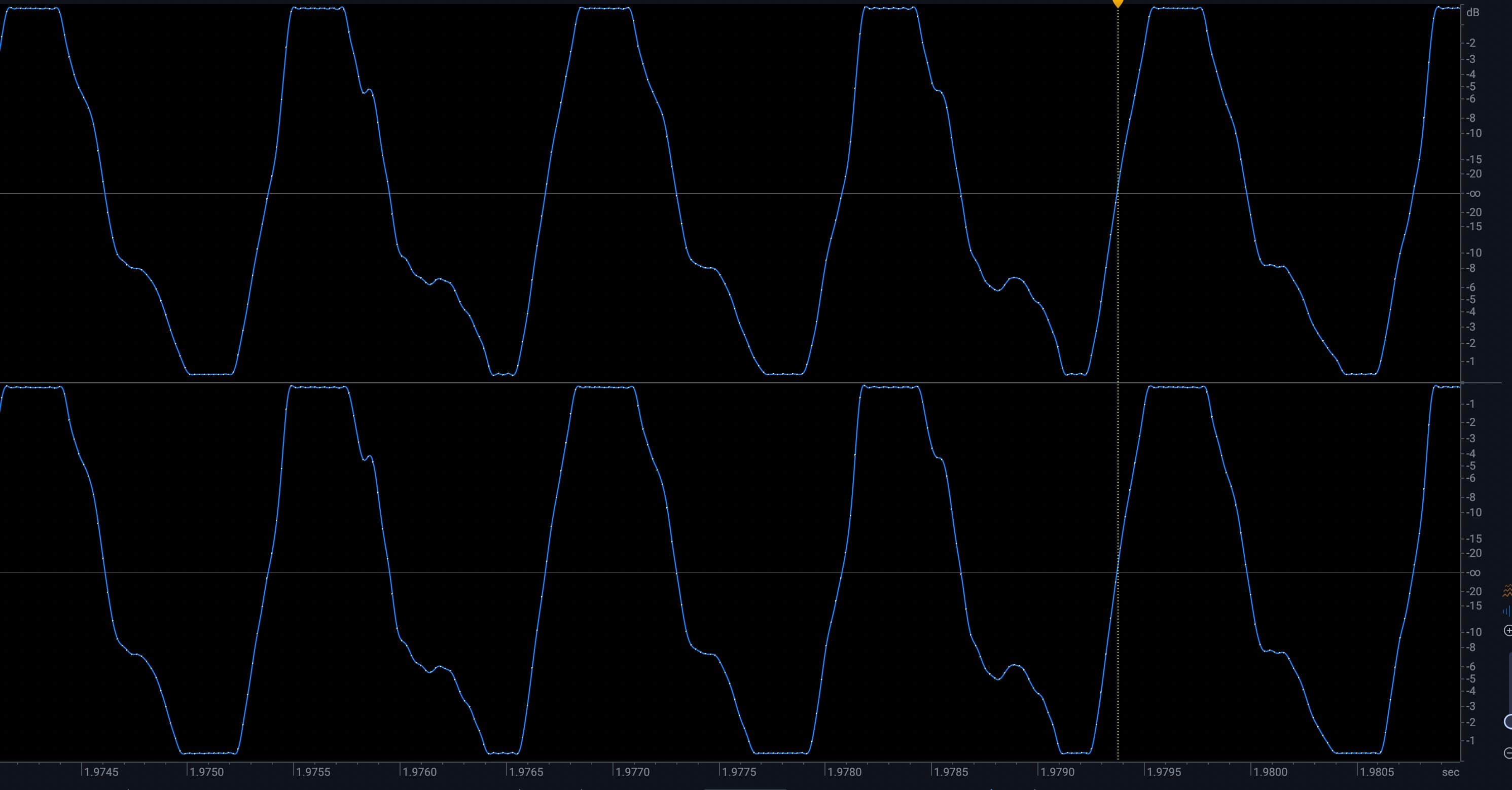 Zoomed-in view of a clipped vocal waveform showing squared-off peaks
This looks like clipping to me (spoiler alert: it is). But let's listen to be sure:
My friends, that fizzy, brittle edge you hear? That's clipping: inharmonic garbage baked right into the signal, distortion that has nothing to do with the key of the music.
No amount of the usual processing will fully save you here. You have to rebuild the peaks, and that's exactly what De-clip does. Watch Geoff Manchester use De-clip here. It works, and you can run it in-line in your DAW if need be.
Overusing De-clip, however, sounds equally bad. So don't.
3. There's a wash of noise under everything
The fix: Voice De-noise
If you hear hiss, fan noise, or air conditioning between words, the vocal has a high noise floor. Compression raises that floor, so it gets loudest exactly when the vocal should feel intimate. RX 12's Voice De-noise learns the noise from the gaps and reduces it.
Preamp self-noise, computer fans, air con blasting, heat hissing out of the radiator: if there's an audible noise floor between words or in the melody, you're probably going to find yourself in trouble. Why? When you compress, you reduce the dynamic range of the signal and then bring all of it up, making the quietest parts louder. Every decibel of gain reduction pulls that floor up.
Enter Voice De-noise, which learns a noise profile from the silence in your recording and expertly pats it down. Watch Geoff Manchester use it here. It's light on CPU, so running it in-line is an option.
A word to the wise: don't go overboard. If you're working on a super loud tune with tons of instruments, and your vocal rarely drops out for long, that noise floor might not matter much; the music itself will mask it. In those cases, you'd be adding processing just to do it, and that's always a mistake.
4. A steady buzz sits under the take
The fix: De-hum
A constant, pitched buzz at 50 or 60 Hz (and its harmonics) is electrical hum. It comes from ground loops, dimmer switches, or bad cables, and in the RX spectrogram it shows up as horizontal lines stacked up the frequency range. RX 12's De-hum removes it.
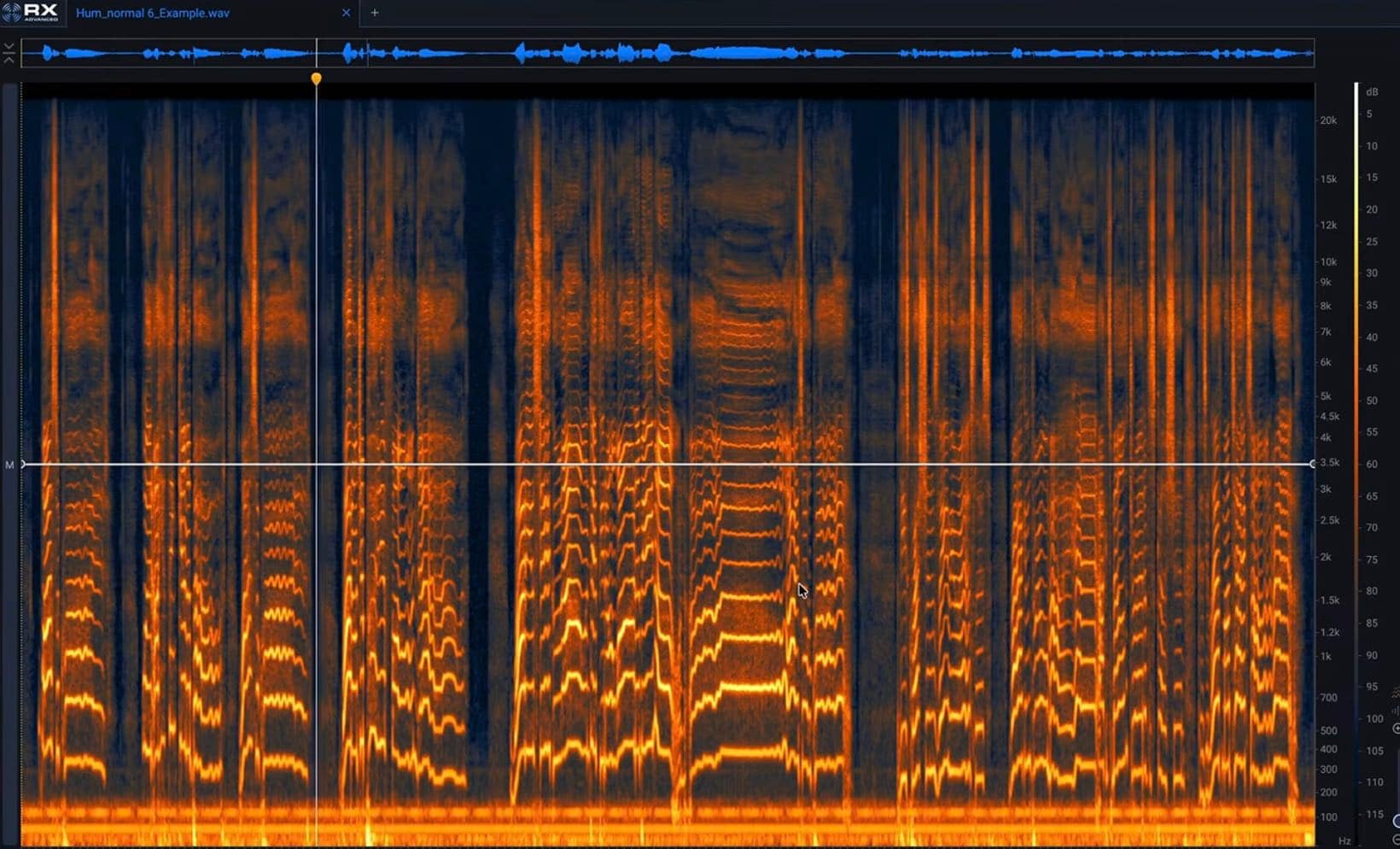 RX 12 spectrogram showing hum as horizontal lines at 60 Hz and its harmonics
Hum often survives a high-pass filter because it's a stack of tones, not a single note. Left untreated, it can pump along with your compressor, which makes it even more obnoxious.
To use De-hum, select your audio, smash that Learn button (remember when people said that?), then adjust the sensitivity and the number of harmonic bands to suit your source.
5. Too much room reverb
The fix: Dialogue Isolate (De-reverb)
If you hear reverb you didn't add, it's your recording room's reflections, and it will clash with any reverb you add in the mix. RX 12's Dialogue Isolate, now retooled to handle sung vocals as well as speech, includes a De-reverb control that reduces it.
You want as clean and dry a vocal as possible going into the mix. There are other modern ways to tackle room sound, such as transient shapers or the transient/sustain controls in Ozone and Neutron's EQ. But we're here to talk RX.
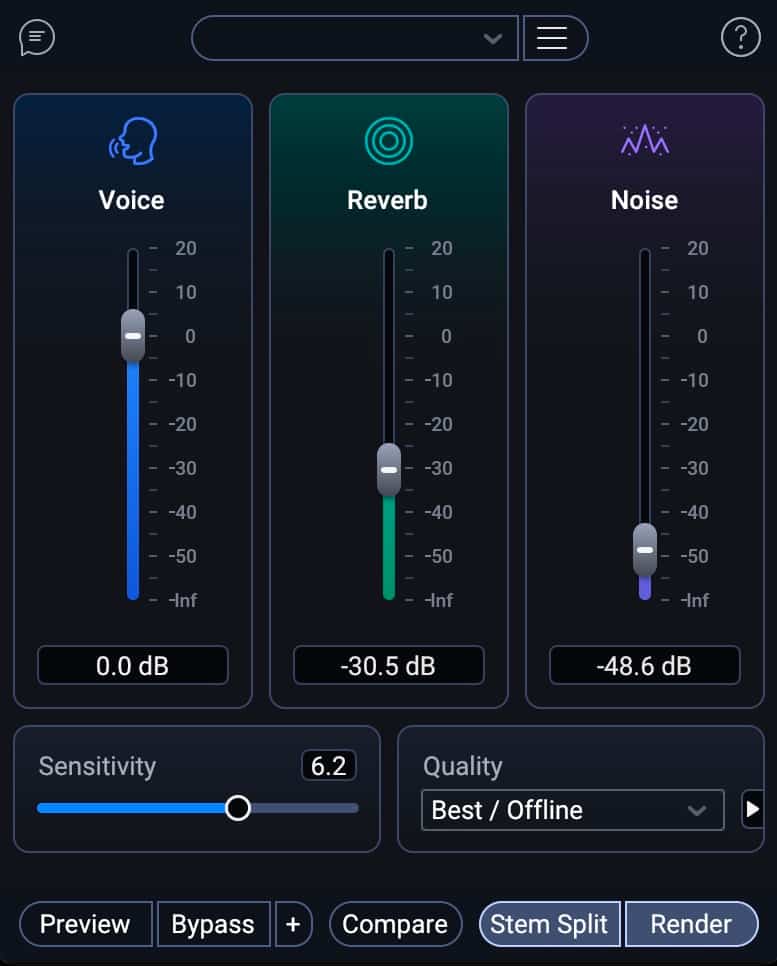 RX 12 Dialogue Isolate module with the De-reverb slider
Open Dialogue Isolate and head to the De-reverb slider. Again, this is easy to overdo. Err on the side of caution and take out most of the reverb rather than all of it. You can always add the reverb you actually want on top, and a slightly reverberant vocal beats an artifacting one every time.
Here's a before and after, using the settings above.
6. Mouth clicks and low-end plosives
The fix: Mouth De-click and De-plosive
Mouth clicks are sticky ticks between phrases; plosives are low-frequency thumps on P and B sounds. Both are easy to miss at tracking level and become glaring once the vocal is compressed and loud. RX 12's Mouth De-click handles the clicks, and De-plosive tames the thumps.
Plosives are especially easy to overlook without full-range monitoring, because they sit surprisingly low, and sometimes reach up into the midrange. Now compress your vocal, put a bunch of reverb on it, make it louder than the music, compress all that again, and finally (because make no mistake, the loudness wars are over and loudness won) limit your mix to around -7 LUFS short-term.
You see where I'm going: the louder you make your tracks, the bigger a problem plosives and clicks become, until they're practically all anyone can hear. Plosives also eat headroom, triggering compressors and limiters to pump on every P.
Start with Mouth De-click; the defaults work fine, and you can browse presets from each module's menu. Get more advanced with spectral editing, and you might start defaulting to Spectral Replace like I do. I'll show you how in this video.
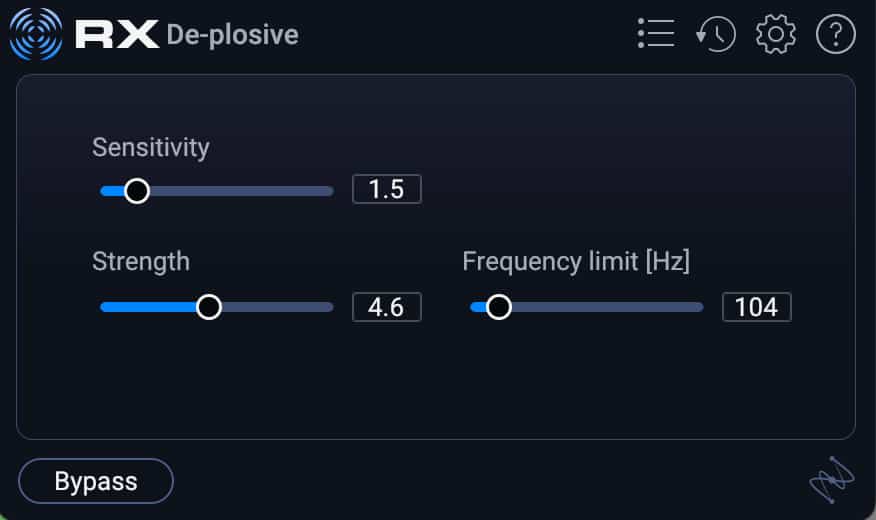 RX 12 De-plosive module with recommended settings for vocals
Remember: not all clicks are the enemy. On a stripped-down, emotional ballad, a mouth click or two can add intimacy. Different listeners and audiences have different preferences, too. In his video, Geoff makes it clear he finds all mouth clicks disgusting and wants them neutralized with extreme prejudice. I, on the other hand, fall asleep to ASMR videos, so I've made my peace with a few. To each their own.
7. Distracting breath sounds
The fix: Breath Control
If breaths jump out once the vocal is compressed, turn them down rather than cutting them. RX 12's retooled Breath Control module detects breaths and attenuates them automatically, keeping the emotion they carry without the distraction.
Why do you need this? Because (say it with me now) compression amplifies everything, breaths included. A healthy dose of compression can make the clearest lungs in the world sound asthmatic.
Loud breaths have always been hard to control in anything but a manual way, until now, I'd wager. The iZotope team retooled the breath-control algorithm in RX 12, and it's uncannily good at suppressing breaths. Attenuating is better than cutting them outright, which makes a vocal sound choppy and robotic. Loud breaths are distracting, but breaths carry emotion.
Watch Geoff use Breath Control here.
8. Harsh sibilance
The fix: De-ess
If every S or T hits like a dart to the ear, the vocal has harsh sibilance, caused by mic choice, mic placement, or the singer's teeth. A pass of RX 12's De-ess before mixing smooths it out, and a second, lighter pass after compression may still be needed.
The de-esser in RX 12 is nuanced: you can reshape the offending sibilance into a more pleasing curve rather than just ducking it. In spectral mode, play with the brown/pink/white noise slider in fast mode and listen to what happens to your vocal. It can be very transparent indeed.
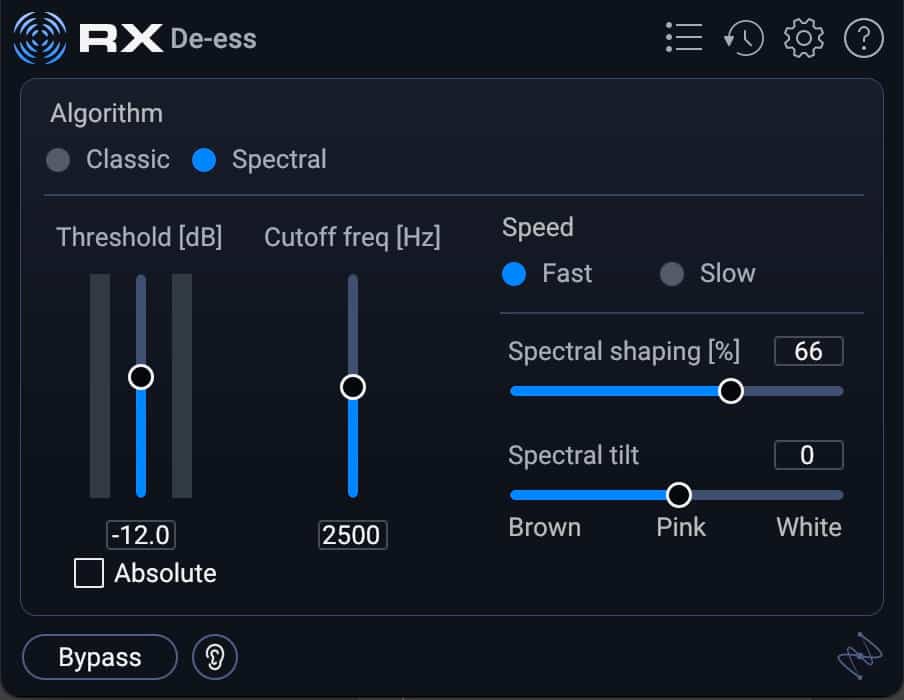 RX 12 De-ess module in spectral mode with the noise color slider
Keep in mind that compression will bring those sibilants back up, so you may need another de-esser after the compressor at the mix stage.
9. One-off noises you can see but can't gate
The fix: Spectral Repair
Chair creaks, phone buzzes, page turns, and jangling jewelry are one-off events, so automatic noise reduction tends to miss them. Find them in the spectrogram and remove them by hand with Spectral Repair in the RX 12 standalone app.
These things happen, and they are the bane of our existence as engineers. Select the noise with the brush, lasso, or frequency-dependent rectangle tool (the latter is my favorite). Then choose Attenuate, Replace, or Pattern, whichever heals it best. Chances are it's Attenuate or Replace; Pattern is a more specialized tool.
It's surgical, manual work, but it's what separates a clean vocal from a merely processed one. If you can see it, you can remove it. Watch Geoff do it here.
10. The comp is great, but the tone jumps between lines
The fix: EQ Match
If your comp was built from different sessions, days, or mic positions, the timbre can change from line to line, and no compressor will fix that. RX 12's EQ Match, in the standalone app, matches the tone of outlier lines to your best-sounding section.
Pick your best-sounding section as the reference, select the outlier as the target, and let EQ Match bring them into line. It can work wonders. Watch Geoff use EQ Match here.
Depending on how you're working with RX, this can be a destructive process on your original comp. Always keep a backup of the original vocal to come back to.
Get started, but remember: it's all in moderation
Run through this vocal pre-mix checklist before every mix, fix only what you can hear in context, and stop there. In a full arrangement, many of these issues won't be audible, and sometimes the "fix" is louder than the original problem. Keep a backup of your original vocal in case you need to revert, and remember that we're here to serve the music.
RX 12 Standard
$399.00
Take tracks from raw to flawless with an intelligent suite of pro audio restoration tools.… read more

FAQs
How do I know if my vocal is ready for mixing?
Solo the vocal, put a compressor on it, and listen at mix level while watching the spectrogram. If you hear or see bleed, clipping, noise, hum, room reverb, clicks, plosives, loud breaths, harsh sibilance, one-off noises, or tone changes between lines, fix those first. If none stand out in the context of the song, the vocal is ready.
What is pre-mix vocal preparation?
Pre-mix vocal preparation is the repair and cleanup done to a vocal before creative mixing starts. It removes recording problems that compression, saturation, and reverb would otherwise amplify, so the mix starts from a clean, consistent source.
What are the most common vocal recording problems?
The most common are headphone bleed, clipping, broadband noise, electrical hum, room reverb, mouth clicks, plosives, loud breaths, harsh sibilance, one-off noises, and tone differences between comped takes. Each has a dedicated RX 12 module, listed in the checklist table above.
In what order should I fix vocal problems?
A practical order is to fix distortion first (clipping), then constant problems (hum, noise, bleed, room reverb), then short events (clicks, plosives, breaths, sibilance, one-off noises), and match tone last. Fixing constant noise early makes short events easier to see in the spectrogram. Repair Assistant in RX 12 can also suggest a processing chain for you.
Can I over-process a vocal with RX?
Yes. Too much De-clip, De-noise, De-reverb, or Breath Control introduces artifacts that can sound worse than the original problem. Use the lightest setting that removes the distraction, compare before and after at mix level, and leave anything the music masks.